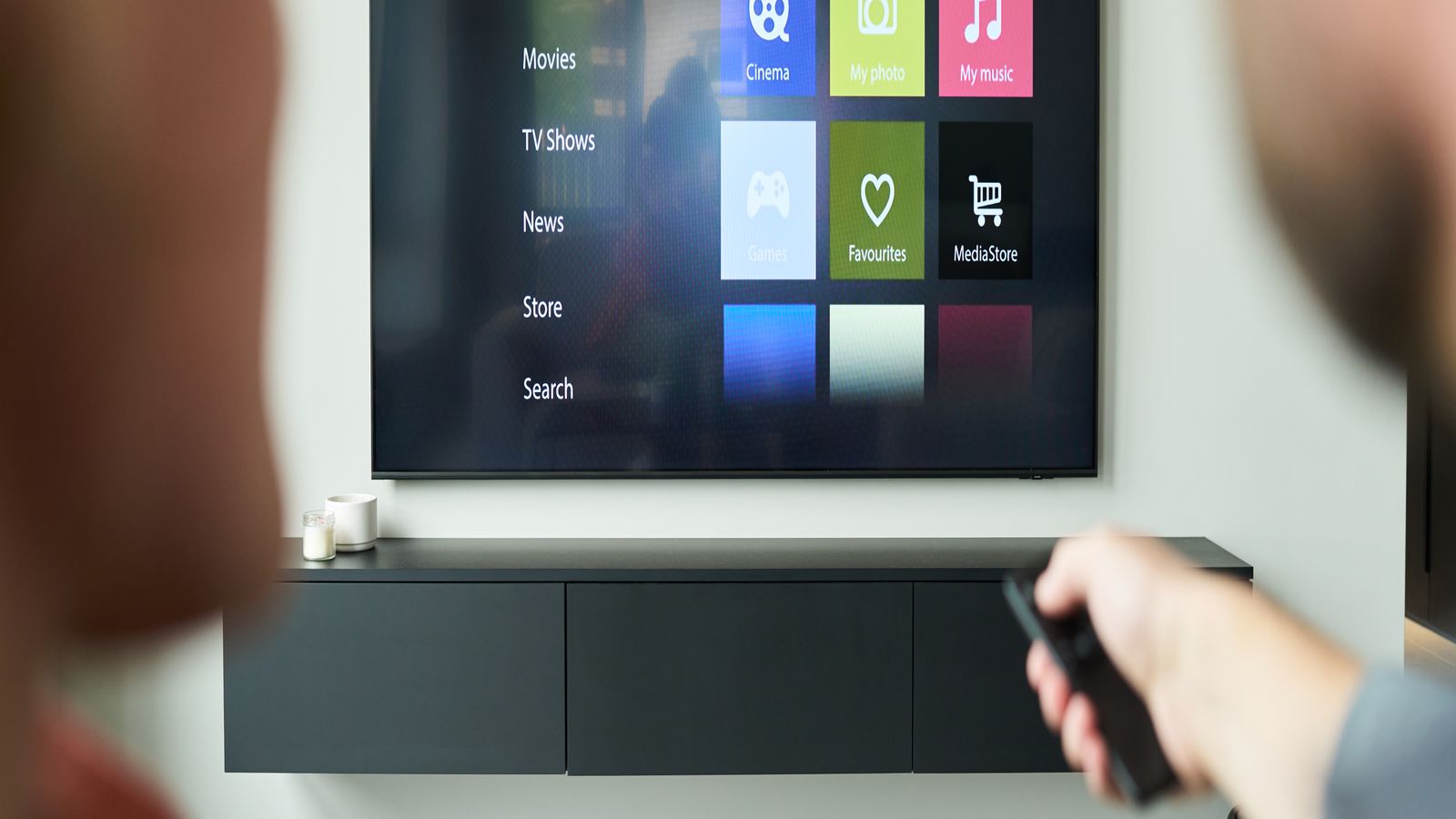
Google TV sits on top of Android TV, which means your app runs on Android, but the user experience expectations, input model, and performance ceiling are all different from a phone or tablet. This page covers the product surface you are building for, the playback stack options, performance constraints on actual consumer hardware, and what the release and certification process looks like. We also touch on the differences between Google TV and plain Android TV, since your app needs to work on both.
Product surface: Google TV versus Android TV
Google TV is a software layer that runs on top of Android TV. The underlying OS is Android, but Google TV adds a content-aggregation home screen, personalized recommendations, and a unified search experience. For app developers, this distinction matters in a few specific ways.
Android TV is the base platform. Any app built for Android TV will run on Google TV devices. The Leanback library provides UI components designed for the 10-foot experience: browse fragments, detail views, search, and playback controls. These components handle D-pad navigation out of the box, which is important because TV remotes do not have touch screens.
Google TV adds the content discovery layer. If your app provides media content, you can integrate with Google’s media recommendations and Watch Next system. This means your content can appear on the Google TV home screen alongside content from other apps. Getting this integration right matters for user engagement, but it also means your app needs to publish media metadata in the format Google expects.
The practical upshot: you are building an Android TV app, but you need to consider Google TV’s content discovery features, especially if you want your content to surface outside of your own app UI.
Input model and the 10-foot interface
TV apps use D-pad navigation: up, down, left, right, and select. There is no touch. There is no mouse pointer. Every interactive element in your app needs to be reachable and operable with directional input.
The Leanback library handles most of this if you stick with its standard components. But as soon as you need custom UI, such as a custom player overlay, a settings panel, or an interactive content detail screen, you need to manage focus yourself. This means:
- Every focusable element needs a visible focus indicator
- Focus traversal needs to follow a logical spatial pattern
- Focus should never get “lost” (trapped in an element that has no visible exit)
- Going “back” should always do something predictable
Focus management is one of the most common sources of bugs in TV apps. It does not show up in unit tests. It only becomes obvious when someone sits on a couch with a remote and tries to navigate your app. Automate your focus tests if you can, but also test manually on a real device with a real remote.
Voice input is also available on Google TV through the Google Assistant. Your app can support voice search and voice commands, but this is a secondary input method. The D-pad is primary. Do not design your app around voice input.
Playback stacks
Google TV supports several approaches to media playback, and choosing the right one depends on your content type, DRM requirements, and how much control you need over the playback experience.
ExoPlayer (now part of Media3) is the recommended player for Android TV and Google TV. It supports HLS, DASH, and SmoothStreaming. It handles adaptive bitrate switching, Widevine DRM, subtitle rendering, and audio track selection. For most streaming apps, ExoPlayer is the right choice because it handles the hard parts (buffer management, codec negotiation, DRM integration) and lets you focus on the UI.
MediaPlayer is the legacy Android media API. It works, but it is limited. No adaptive bitrate support. Limited format coverage. No built-in DRM support. There is no good reason to use it for a streaming app.
Custom players are occasionally necessary, usually when your content requires a specific DRM integration or when you are wrapping a cross-platform player library. If you go this route, you are responsible for codec negotiation, buffer management, and all the platform-specific edge cases that ExoPlayer handles for you.
What we recommend: start with ExoPlayer/Media3 unless you have a specific reason not to. If you need cross-platform consistency and are willing to accept the integration cost, a cross-platform player like Shaka Player (for web-based approaches) or a native wrapper around a shared C++ media pipeline can work, but the complexity goes up significantly.
Performance constraints on consumer devices
Google TV devices range from high-end televisions with capable hardware to budget streaming dongles with limited RAM and processing power. The Chromecast with Google TV (the dongle form factor) is a common target, and it has meaningful hardware constraints:
- RAM: 2 GB total, with a significant portion used by Android and Google TV’s overlay. Your app typically has 300-500 MB of usable heap, sometimes less during background activity.
- CPU: Quad-core ARM processors that throttle under sustained load. A transcoding or image decoding operation that runs fine on a Pixel phone will take noticeably longer on a Chromecast.
- Storage: Limited internal storage means your app needs to be conservative about caching. Do not assume you can maintain a large local content database.
- GPU: Capable enough for standard UI rendering and hardware video decoding, but not for complex shader effects or high-frame-rate UI animations.
Practical implications:
- Profile your app’s memory usage under sustained playback (2+ hours). Memory leaks that are invisible in short test runs become session-ending crashes during a movie.
- Use image loading libraries that respect memory constraints and cache size limits. Loading full-resolution poster art for every item in a browse grid will consume your available memory quickly.
- Measure cold start time on a real device after a reboot. Users notice if your app takes 8 seconds to reach the first usable screen.
- Test with background apps running. Google TV keeps services in the background that compete for memory and CPU.
Release process considerations
Publishing an Android TV app involves Google Play review and, for Google TV integration features, additional certification steps.
Google Play review checks for standard Android policy compliance, accessibility requirements, and TV-specific criteria. Your app must support D-pad navigation, must not require touch input, and must use a Leanback launcher banner that meets the size and format requirements.
Content rating is required. You need to complete the content rating questionnaire in the Play Console. This is not optional for TV apps.
Google TV integration (Watch Next, recommendations) requires additional metadata and may involve extra review steps. Google has specific requirements for how you populate the Watch Next row and how you handle deep links from recommendation cards.
Pre-launch testing checklist:
- Test on at least two Google TV devices from different manufacturers
- Verify D-pad navigation reaches every interactive element
- Confirm playback works with Widevine L1 on target devices
- Validate deep link handling from Google TV recommendations
- Test background/foreground transitions during active playback
- Verify that your app handles low-memory conditions gracefully (system may kill background apps)
- Check accessibility: TalkBack navigation should work through main user flows
Certification timeline: Google Play review typically takes 1-3 days for updates and may take longer for new apps or apps with significant changes. Plan accordingly. If you are targeting a specific launch date, submit well in advance and have a rollback plan.
The Android TV ecosystem is mature enough that most of the sharp edges have been documented. But the gap between “works on an emulator” and “works well on a 3-year-old Chromecast in someone’s living room” is real, and that gap is where most of the interesting engineering problems live.
Related resources
See our Google TV platform notes and streaming architecture guides.
Google TV Platform Notes